
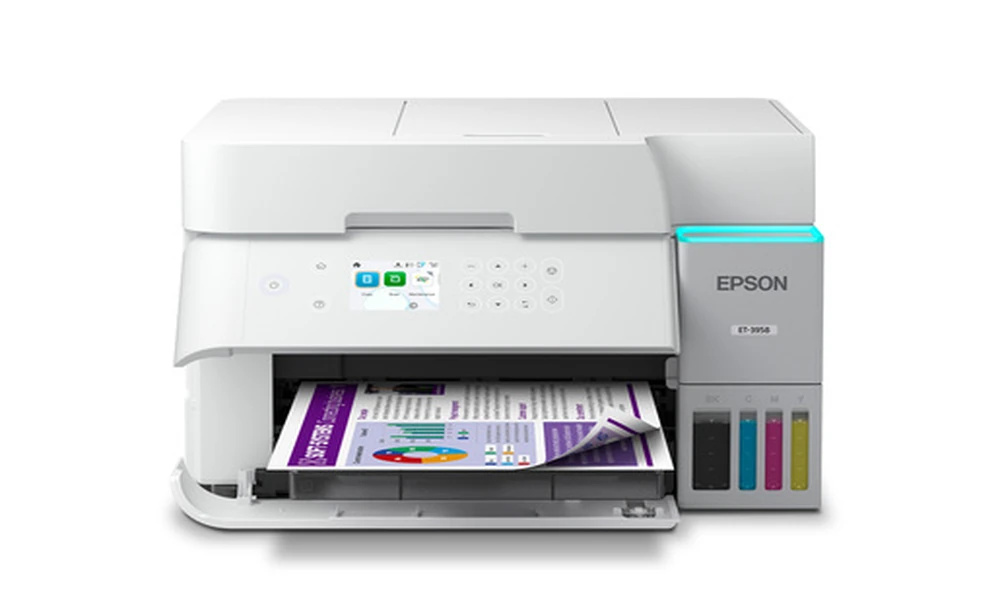
Epson EcoTank printers changed the inkjet market by replacing traditional cartridges with large refillable tanks. The cost per page drops dramatically because users buy bottled ink rather than cartridges, and a single set of bottles typically prints thousands of pages. The trade off is a different setup process, a longer initial charge, and a maintenance routine that differs from cartridge based printers. The EcoTank user manual explains every one of these differences. This guide walks through how to use EcoTank documentation to get a smooth start and a long working life from any ET series model.
Identifying Your EcoTank Model
Epson EcoTank model numbers follow an ET prefix. ET 2800 and ET 2850 are compact home models. ET 3850 and ET 4850 add features such as automatic duplex and an ADF. ET 8550 is the wide format photo model with six color ink. ET 16650 is the wide format business model with four color pigment ink. Each model has its own manual that explains the specific features and ink set.
A library like Epson printer user manuals organizes documentation across the entire EcoTank lineup as well as the older WorkForce and Expression models, simplifying the search for the exact match to your unit.
The Initial Ink Charge
The first ink charge is the part of EcoTank setup that catches new owners off guard. The manual explains the procedure step by step. The included ink bottles each fit only the correct color tank thanks to a keyed bottle design, so cross contamination is unlikely if you follow the diagrams.
Once the tanks are filled to the upper line, the printer pulls ink through the internal system to prime the print head. This initial charge takes ten to twenty minutes depending on the model and uses a meaningful share of the first set of bottles. The manual is clear that interrupting or cancelling the initial charge can damage the print head.
Initial charge tip: Do not unplug the printer during the initial ink charge. The print head needs to remain primed throughout the process, and an interrupted charge often requires service to recover.
After the charge completes, the manual recommends running the automatic alignment routine to ensure prints are sharp. Skipping alignment leaves a slight offset that affects photo and graphic prints.
Daily Use and Print Settings
EcoTank manuals cover daily use in the same detail as cartridge based printers. Paper loading, paper type selection in the driver, automatic duplex on supported models, and borderless photo printing all appear with diagrams. The manual explains the trade off between standard quality and high quality print modes for different document types.
The Epson Smart Panel app, available on phones and tablets, complements the manual with simple shortcuts for mobile printing and scanning. The manual covers app registration and the steps to enable printing from cloud services such as iCloud, Google Drive, and Dropbox.
Ink Bottles and Refills
EcoTank manuals list the bottle part numbers for each color in your specific model. Using the correct bottles is important. Mixing bottle types or using non Epson bottles can affect print quality and may void the warranty depending on the model.
The manual recommends refilling tanks when ink drops to the lower line rather than waiting for the printer to stop. Refilling earlier prevents air from entering the system, which can cause print quality issues that require deep cleaning to fix.
Print Head Maintenance
The Micro Piezo print head used in Epson printers is fixed hardware rather than a disposable part of a cartridge. The manual explains the nozzle check pattern, the cleaning cycles, and the deep cleaning procedure for stubborn clogs. Each cleaning uses ink, so the manual recommends starting with the lightest cleaning and escalating only if necessary.
For printers that sit unused for weeks at a time, the manual recommends running a small print job every week or two to keep the print head healthy. A nozzle check before important print jobs reveals any clogs before they affect a real document.
Wireless and Network Setup
EcoTank wireless setup uses the standard Epson process: WPS connection, Epson Smart Panel app, or manual entry through the control panel. The manual covers each option and lists the troubleshooting steps for common setup failures.
Network diagnostics, including the network status report that the printer can print on demand, get a dedicated section. The status report shows the IP address, signal strength, and any network errors detected during the connection attempt.
Troubleshooting Common Issues
EcoTank error messages follow the same structure as other Epson printers. The manual translates each message into plain language and lists the recommended action. Paper jams have their own diagram showing where to open the printer and how to remove jammed paper safely.
For print quality issues, the manual walks through a logical sequence: nozzle check first, alignment second, head cleaning third, deep cleaning last if other steps did not resolve the issue.
Documentation for Older EcoTank Models
The EcoTank line has been on the market for several years, and earlier models such as the ET 2500 and ET 4500 are no longer current. Independent archives like manualmachine.com keep their documentation available, so older units remain fully usable with the right manual in hand.
Final Thoughts
EcoTank printer manuals reward careful reading. The initial ink charge proceeds correctly, daily use becomes more efficient, ink lasts the full thousands of pages it should, and maintenance keeps the print head working smoothly for years. Locate your exact model number, retrieve the matching guide from a documentation library, and refer back whenever a question arises. EcoTank printers are designed for long life and low cost per page, and the manual is the key to getting both.